
Pluck Logo Pluck
Transcript Extraction Guide

How to Extract YouTube Transcripts into Notion

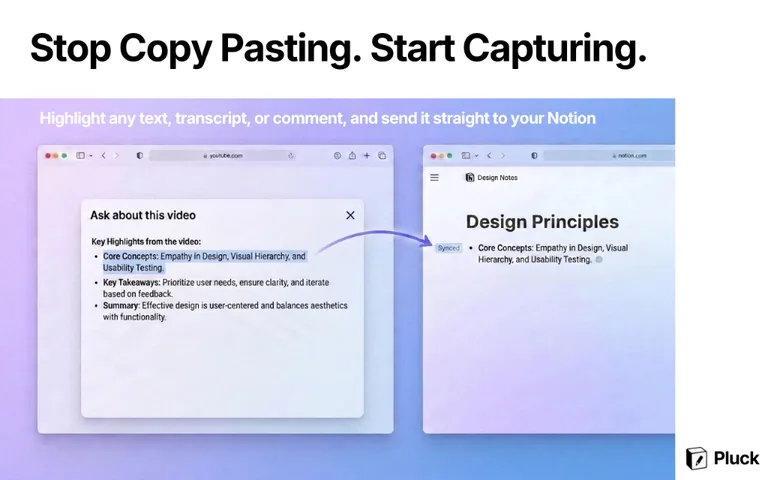
Stop copy-pasting captions line by line. With Pluck, you can pull a full YouTube transcript into Notion in a single click — clean, searchable, and ready to use.

Stop copy-pasting YouTube captions — Pluck syncs full video transcripts to Notion in one click

The Copy-Paste Caption Problem

If you've ever tried to save a YouTube transcript manually, you know how slow it is. YouTube has no "Export to Notion" button. So you open the transcript panel, copy chunks of text, switch to Notion, paste, format — then do it all again. A 1-hour video can take 20+ minutes to transcribe by hand.

Pluck skips all of that. One click in the side panel grabs the full transcript and sends it straight to your Notion page — clean, readable, and ready to search.
Why Searchable Transcripts Change How You Study

Pluck turns the video's captions into clean, readable text and saves it directly to your Notion page — so hours of video becomes something you can actually work with.

  • Search the full video with Ctrl+F — find any word or phrase instantly without rewatching.
  • Saved as regular Notion text — edit, highlight, comment, or link to any part.
  • Works alongside your notes — combine the transcript with screenshots and timestamped notes in one page.
  • Readable formatting — captions are broken into clean paragraphs, not one big wall of text.
YouTube transcript synced into Notion as clean, searchable text blocks

How to Extract a YouTube Transcript into Notion

Three steps to go from video to searchable Notion text:

  1. 1

    Install Pluck & Connect Notion

    Add Pluck from the Chrome Web Store and sign in to Notion once to connect your account. Free — no credit card needed.

  2. 2

    Open Any YouTube Video

    Navigate to the video you want to transcribe. Pluck's side panel appears automatically alongside the player.

  3. 3

    Click "Fetch Transcript"

    Pluck extracts the full auto-caption text and pushes it into your Notion page as clean, structured text blocks — formatted and ready to search.

Who Benefits Most from YouTube Transcript Extraction

school

Students

Study from lectures without rewatching

mic

Podcasters

Research competitors and guests fast

science

Researchers

Archive interview transcripts in Notion

language

Language Learners

Study native video transcripts

Frequently Asked Questions

How do I get a YouTube transcript into Notion? expand_more

Install the Pluck Chrome extension, connect it to your Notion workspace, then open any YouTube video and click "Fetch Transcript". Pluck extracts the captions and syncs the full text into your Notion page in seconds.

Does the transcript feature work on all YouTube videos? expand_more

Pluck can extract transcripts from any YouTube video that has auto-generated or manually uploaded captions. Most public videos have captions available.

How is the YouTube transcript formatted in Notion? expand_more

Pluck formats raw YouTube captions into structured Notion text blocks — making the full transcript Ctrl+F searchable within your Notion page.

Can I search the transcript once it's in Notion? expand_more

Yes. Because the transcript is synced as native Notion text blocks, it is fully indexed by Notion's search. You can use Ctrl+F within the page or Notion's global search to find any word or phrase.

Is the Pluck transcript feature free? expand_more

Yes. The transcript extraction feature is included for free. No subscription or credit card is required.

Can I combine a transcript with screenshots and notes in one Notion page? expand_more

Yes. Pluck lets you combine transcript text, annotated screenshots, and timestamped notes into a single Notion page for a complete video study document.

Extract YouTube Transcripts into Notion — Right Now

Install Pluck for free and sync your first video transcript into Notion in under 60 seconds.

extension Get Pluck — Free, No Credit Card Required