Pluck Logo Pluck
High-Resolution Capture Guide

How to Save YouTube Screenshots Directly to Notion

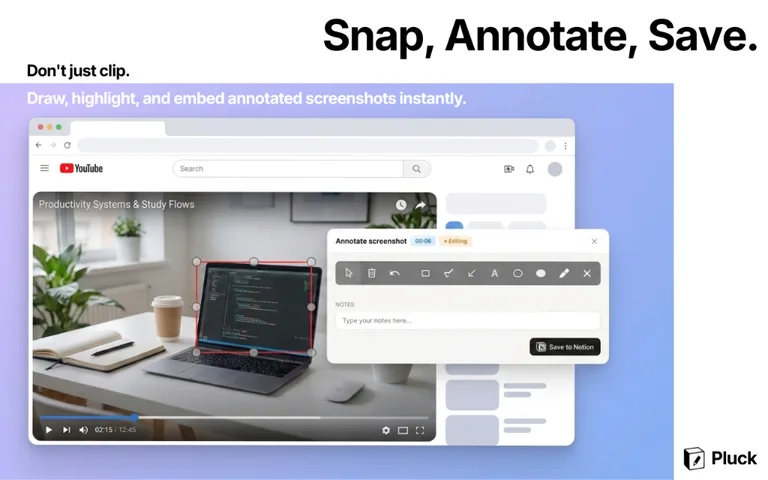
Snap, annotate, and embed native uncompressed video frames straight into Notion with one keyboard shortcut — Alt+S.

Pluck capturing a high-resolution YouTube video frame with annotation tools for arrows, text, and shapes

Watch the Screenshot & Annotation Demo

See how Alt+S captures uncompressed video frames and lets you draw shapes and text before saving directly to Notion.

Why Screenshot Quality Matters in Your Notes

If you've ever tried to screenshot a YouTube video with your system's snipping tool, you know what you get: a blurry image with the browser toolbar, subtitle overlays, and sometimes a YouTube watermark in it. That's not something you want in your Notion notes. Pluck captures the video frame directly — none of that gets in the way.

❌ System Screenshot Tool

  • Captures the whole screen — blurry and compressed
  • Includes browser toolbar and video overlays
  • Requires switching to Notion to paste
  • No way to annotate before saving

✅ Pluck Alt+S

  • Captures the video frame directly — full quality
  • No toolbar, overlays, or watermarks
  • Saved to Notion automatically
  • Built-in editor to draw and annotate

One Shortcut. Screenshot Saved to Notion.

No need to pause the video or switch tabs. Press Alt+S at any point while watching — in normal view or fullscreen.

  • Captures the video frame directly — no toolbar or overlay in the image.
  • Draw arrows, boxes, and text labels before saving.
  • Screenshot is saved straight to your active Notion page.
Keyboard showing Alt+S shortcut for capturing YouTube screenshots with Pluck

How to Capture YouTube Screenshots to Notion: Step-by-Step

Get your first annotated screenshot into Notion in under 2 minutes:

  1. 1

    Install Pluck & Connect Notion

    Add Pluck from the Chrome Web Store (free) and sign in to Notion once to connect your account. No credit card required.

  2. 2

    Press Alt+S During Any YouTube Video

    Pluck opens an editor with a clean capture of the current video frame. The video pauses so you can draw on it.

  3. 3

    Annotate (Optional) and Save to Notion

    Draw arrows, boxes, or text labels to highlight key areas. Click Save — the screenshot is embedded as an image block in your active Notion page.

Frequently Asked Questions

How do I save a YouTube screenshot to Notion? expand_more

Install the Pluck Chrome extension, connect your Notion workspace, then press Alt+S while watching any YouTube video. Pluck captures the frame at full resolution, opens an annotation editor, and saves it directly to your Notion page.

Are Pluck screenshots high resolution? expand_more

Yes. Pluck captures the video frame directly at full quality — no browser toolbar, overlays, or compression.

Can I annotate screenshots before saving to Notion? expand_more

Yes. After pressing Alt+S, Pluck opens an annotation editor where you can draw arrows, boxes, and add text labels on the video frame before syncing it to Notion.

Does Alt+S pause the video? expand_more

The video pauses momentarily while the annotation editor is open so you can draw on the captured frame. Once you save, the video resumes from where you left off.

Where does the screenshot appear in Notion? expand_more

The screenshot is embedded directly into your active Notion page as an inline image block, alongside any notes or transcript content you've captured for that video.

Is the screenshot feature free? expand_more

Yes. The Alt+S screenshot and annotation feature is included in the free version of Pluck. No credit card or subscription is required.

Ready to Capture Crisp YouTube Screenshots into Notion?

Install Pluck for free and start capturing annotated video frames into Notion today.

extension Get Pluck — Free, No Credit Card Required