Pluck Logo Pluck
Complete 2026 Workflow Guide

How to Take Notes from YouTube Videos into Notion

The ultimate guide to turning video lectures, tutorials, and research into organized, searchable Notion notes — without switching tabs or pausing the video.

Pluck side panel showing YouTube notes being taken directly into Notion in real time

See Pluck in Action

Watch how effortless it is to capture screenshots and write timestamped notes while watching YouTube videos.

Instant Screenshot & Draw Demo

Press Alt+S to capture high-res video frames and add drawing annotations before syncing to Notion.

Floating Timestamp Notes Demo

Press Alt+N to jot quick thoughts linked to the exact video second without pausing.

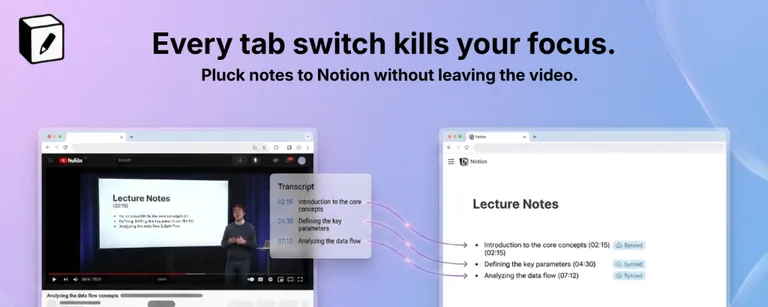
Every Tab Switch Kills Your Focus

Bouncing back and forth between your video player and Notion breaks your flow state. Pluck embeds a persistent side panel right inside YouTube so your notes and video stay on the same screen.

  • No pausing or tab switching.
  • Instant timestamp links on every note.
  • Clean, uncompressed screenshots.
Diagram showing how tab switching between YouTube and Notion breaks study focus

Why Most YouTube Note-Taking Workflows Break Down

If you're studying from YouTube — online courses, university lectures, or deep-dive tutorials — you've already hit this wall: pause the video, Alt+Tab to Notion, type a note, lose your place, rewind, repeat. Forty times an hour. By the time you're done, your notes are thin and your retention suffers. Here's what goes wrong with the typical approach:

pause_circle

Constant Pausing

Every pause breaks your concentration and makes a 1-hour video take twice as long to get through.

link_off

Lost Context

Without a timestamp, you can't find the exact moment an idea came from — your notes lose their connection to the source.

hide_image

Blurry Screenshots

Standard screenshot tools capture the whole browser — you get toolbars, overlays, and a compressed image instead of the clean video frame.

How to Take YouTube Notes in Notion: Step-by-Step

Get set up in under 3 minutes. Here's the exact workflow:

  1. 1

    Install Pluck from the Chrome Web Store

    Click "Add to Chrome" — the install takes under 30 seconds and requires no account. Pluck is completely free.

  2. 2

    Connect Your Notion Workspace

    Click the Pluck icon in your Chrome toolbar and sign in to Notion when prompted. Choose which page or database you'd like your notes saved to.

  3. 3

    Open Any YouTube Video

    Navigate to YouTube. Pluck's side panel appears automatically alongside the player — no per-video setup needed.

  4. 4

    Capture Notes, Screenshots & Transcripts

    Use Alt+N for a floating timestamped note, Alt+S for a high-res annotated screenshot, or "Fetch Transcript" for the full video text — all synced to Notion in seconds.

What You Can Build With Your Notion Video Notes

Once your notes are in Notion, the real power kicks in. Every note includes a clickable timestamp link back to the exact video second, turning your Notion pages into interactive, searchable study materials — not just static text.

school

Searchable Course Notes

Use Notion's full-text search across all your video notes to locate concepts in seconds — no rewatching required.

bookmark

Timestamp-Linked Study Guides

Share a Notion page with a classmate — each bullet links straight back to the video moment it came from. Perfect for group study.

auto_stories

Visual Research Databases

Annotated screenshots become a visual reference library inside your Notion database — organized by topic, project, or course.

Frequently Asked Questions

Can I take notes from YouTube into Notion without leaving YouTube? expand_more

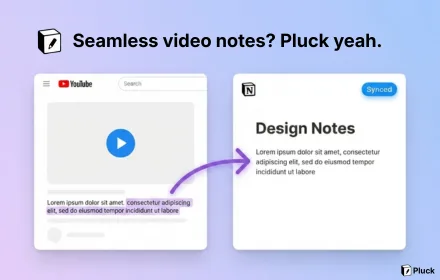
Yes. With the Pluck Chrome extension, a Notion side panel is embedded directly inside YouTube so you can write notes, capture screenshots, and sync transcripts without switching tabs.

Does Pluck work with any YouTube video? expand_more

Yes. Pluck works on any public YouTube video. Navigate to any video and the Pluck side panel appears automatically — no per-video setup required.

Do I need a paid Notion plan to use Pluck? expand_more

No. Pluck works with free Notion accounts. You just need to connect your Notion workspace to the extension during the one-time setup — no subscription required.

What keyboard shortcuts does Pluck use? expand_more

Pluck uses Alt+S to capture a high-resolution screenshot of the current video frame (with optional drawing annotations) and Alt+N to open a floating note prompt linked to the exact video timestamp.

Will Pluck pause the video when I take notes? expand_more

No. The floating note prompt triggered by Alt+N appears over the video player without pausing playback. You can type your note and keep watching at the same time.

Is Pluck free to install? expand_more

Yes. Pluck is completely free to install from the Chrome Web Store. No credit card is required to get started.

Ready to Upgrade Your YouTube Study Workflow?

Install Pluck and sync your first video note into Notion in under 60 seconds.

extension Get Pluck — Free, No Credit Card Required