
Pluck Logo Pluck
Pluck for Chrome — Free

Save YouTube Transcripts & Notes to Notion — Instantly

Save YouTube transcripts, video highlights, and timestamped notes to Notion — without leaving the video tab.

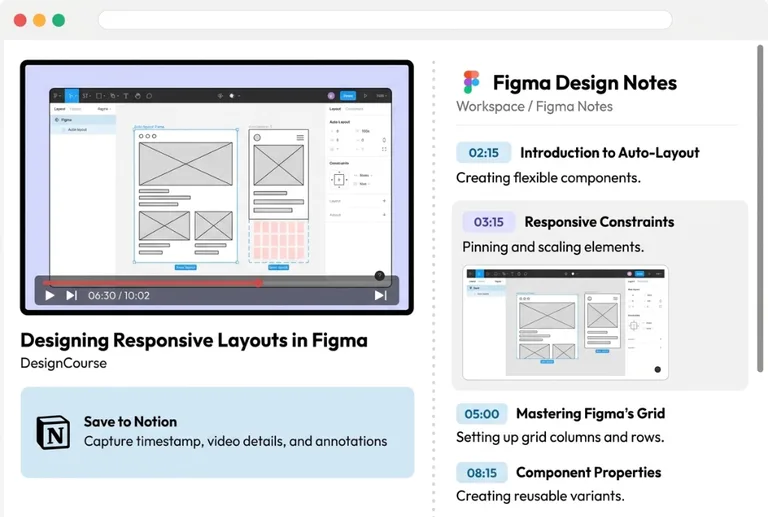
Pluck YouTube to Notion Chrome extension workspace showing side panel with notes, screenshots, and transcript

Feature Highlights

Designed specifically for frictionless YouTube study and note-taking in Notion.

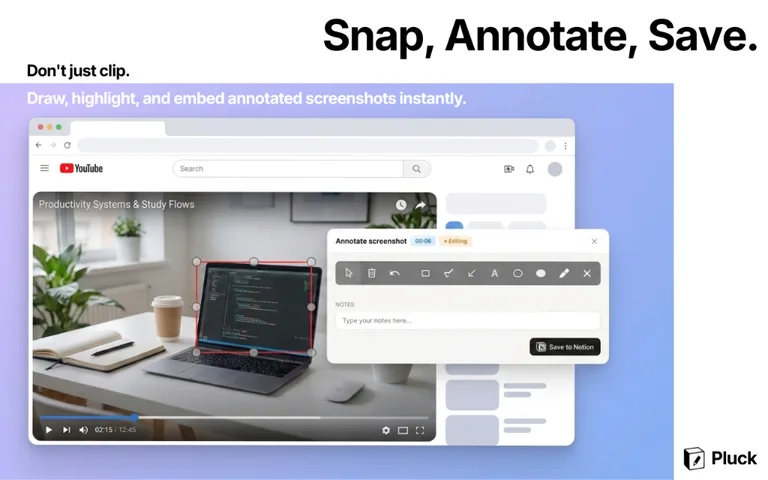
Pluck extension capturing a high-resolution YouTube screenshot with drawing annotation tools

High-Res Screenshots & Annotations

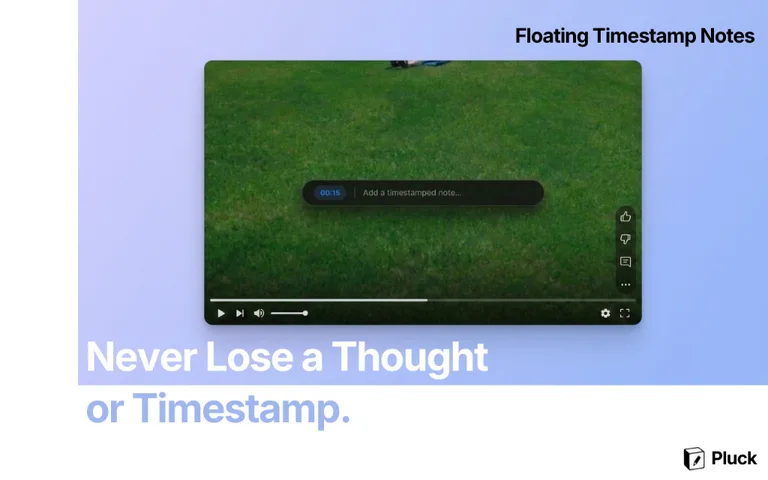
Pluck floating timestamp note prompt appearing over a YouTube video player

Floating Timestamp Note Prompt

3 Reasons Pluck Works Better Than Manual Note-Taking

There are plenty of note-taking tools, but Pluck is built specifically for one thing: watching YouTube and saving what matters directly into Notion — without stopping the video or switching tabs. Here's what makes it different:

1

Zero Tab Switching — The Side Panel Stays on YouTube

Unlike every other approach, Pluck embeds Notion functionality directly into the YouTube page. Your notes, screenshots, and transcript panel live alongside the video. No switching, no losing your place.

2

Native-Quality Screenshots — Not Blurry OS Grabs

Alt+S captures the video frame directly at full quality — no browser toolbar, no overlays. You can draw arrows, boxes, or text on the image before saving it to your Notion page.

3

Every Note Auto-Links to the Exact Video Second

When you press Alt+N to jot a note, Pluck saves the exact point in the video and adds a clickable link to your Notion note. Click it later to jump straight back to that moment.

Who Uses the Pluck Extension?

school

Students

Build organized, searchable Notion pages from university lectures, online courses, and YouTube tutorials — with clickable links back to every key moment.

science

Researchers

Pull the full transcript from any video and save annotated screenshots as visual evidence — all in one Notion page.

movie

Creators

Log references, capture screenshots from competitor videos, and keep your YouTube research organized inside Notion — without a separate tool.

How to Get Started with Pluck

From zero to your first synced note in under 2 minutes:

  1. 1

    Add Pluck to Chrome

    Click "Add to Chrome" on the Chrome Web Store listing. Approve the permissions prompt — no sensitive data is collected.

  2. 2

    Link Your Notion Workspace

    Click the Pluck icon in your toolbar and sign in to Notion when prompted. Choose which page or database you'd like notes saved to. This is a one-time step.

  3. 3

    Open YouTube and Start Capturing

    Navigate to any YouTube video. Use Alt+S for screenshots, Alt+N for timestamped notes, or "Fetch Transcript" for the full video text — all auto-synced to your Notion page.

Pluck vs. Manual Copy/Paste — Feature Comparison

Feature Pluck Extension Manual Copy/Paste
Screenshots 1-Click Uncompressed Frame (Alt+S) Blurry OS Snipping Tool
Timestamps Auto-Hyperlinked to Exact Second Manual Typing
Transcripts Auto-Extracted to Notion Line-by-line Copying
Tab Switching Zero — Embedded Side Panel Constant Alt+Tabbing
Cost Free — No Credit Card Free but Slow & Error-Prone

Frequently Asked Questions

What is the best YouTube to Notion Chrome extension? expand_more

Pluck is a free Chrome extension that embeds a Notion side panel directly inside YouTube. It lets you capture high-resolution screenshots, write timestamped notes, and extract full transcripts — all synced to Notion without leaving the video tab.

How do I install the Pluck YouTube to Notion extension? expand_more

Visit the Pluck listing on the Chrome Web Store, click "Add to Chrome", then connect your Notion workspace via the one-time OAuth prompt. The whole setup takes under two minutes.

Does Pluck work with a free Notion account? expand_more

Yes. Pluck works with both free and paid Notion plans. You only need a Notion account to connect your workspace during setup.

Does Pluck require a subscription or payment? expand_more

No. Pluck is completely free to install and use. There is no subscription, no credit card, and no trial period.

Which browsers does Pluck support? expand_more

Pluck is available as a Chrome extension and works on Chrome, Brave, Edge, and any Chromium-based browser on Windows, macOS, Linux, and ChromeOS.

Can I take notes from any YouTube video with Pluck? expand_more

Yes. Pluck works on any public YouTube video. The side panel appears automatically when you open a video — no configuration is needed per video.

Ready to Save Your First YouTube Video to Notion?

Install Pluck and take your first synced note from a YouTube video in under 60 seconds.

extension Get Pluck — Free, No Credit Card Required